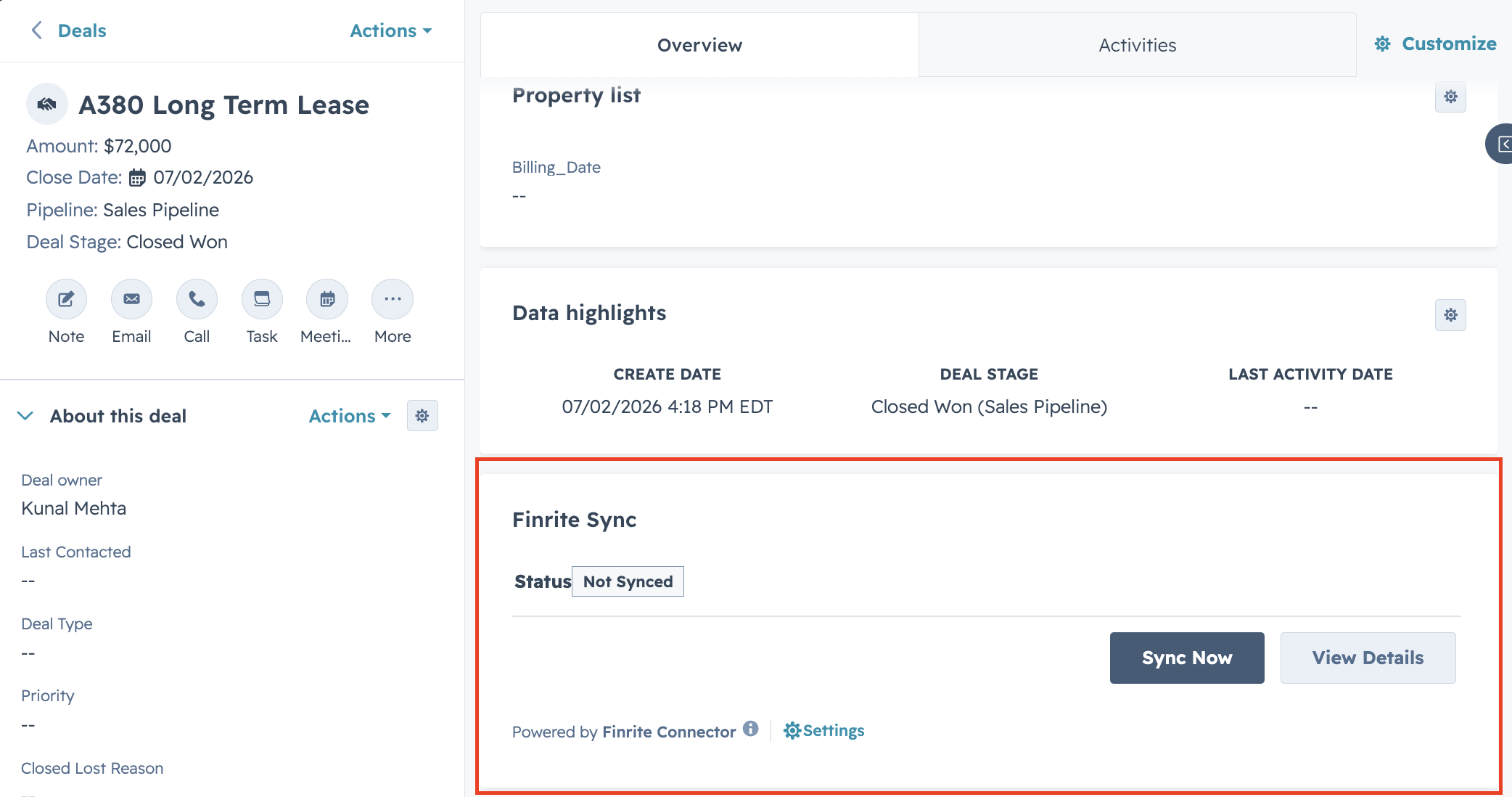
Thanks for using Finrite to connect your HubSpot CRM to Stripe Billing in a bi-directional sync. Here are the instructions you can follow to get your sync working.
Step 1: Create an account with Finrite
- Get in touch with us at contact@finrite.co to set up an account on Finrite.
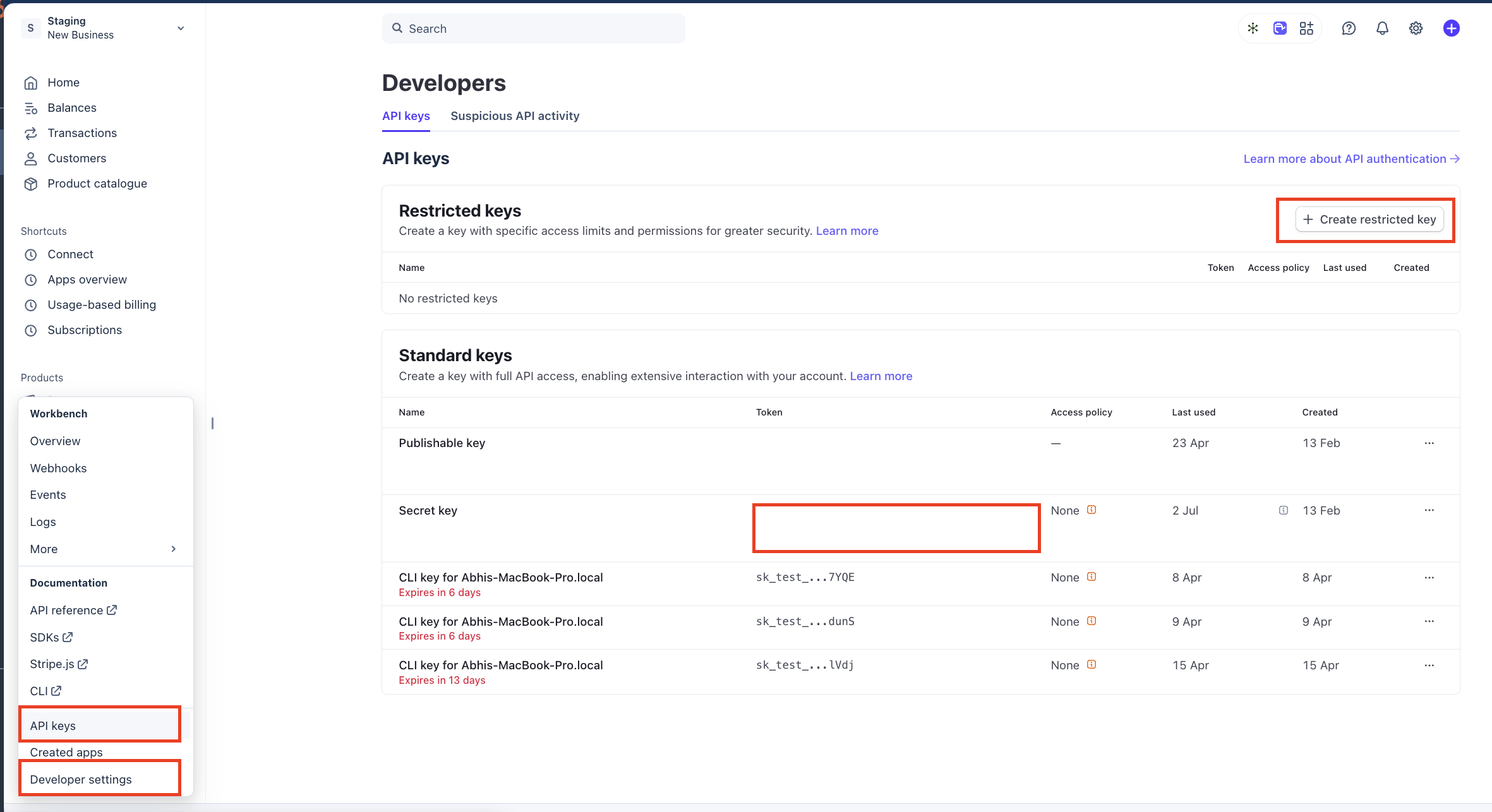
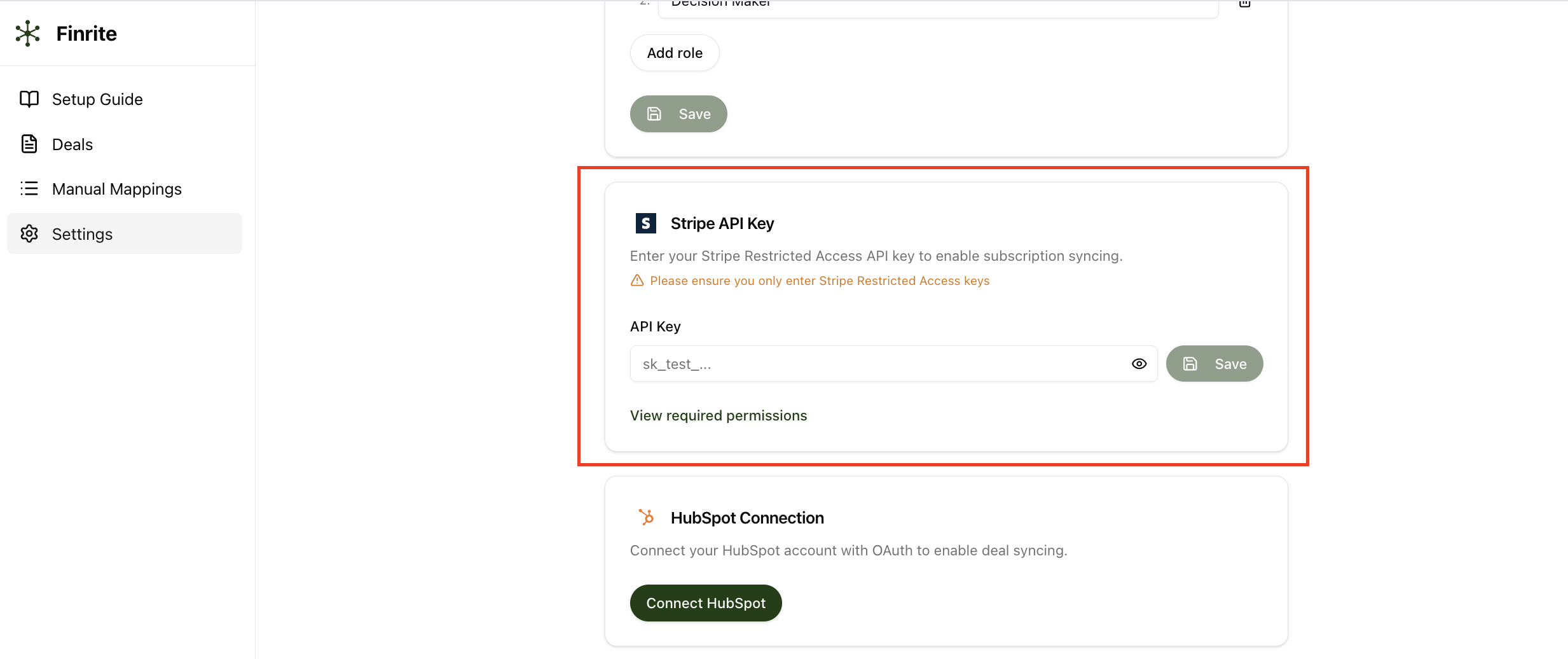
Step 2: Enter your Stripe restricted access keys
- Create a Stripe Restricted Access Key. Select "Powering an integration you've built", then "Choose your own". Name the key "Finrite Connector" and grant read and write access to core and billing objects, as well as account / Connect read access.
- Log into Finrite and go to settings.
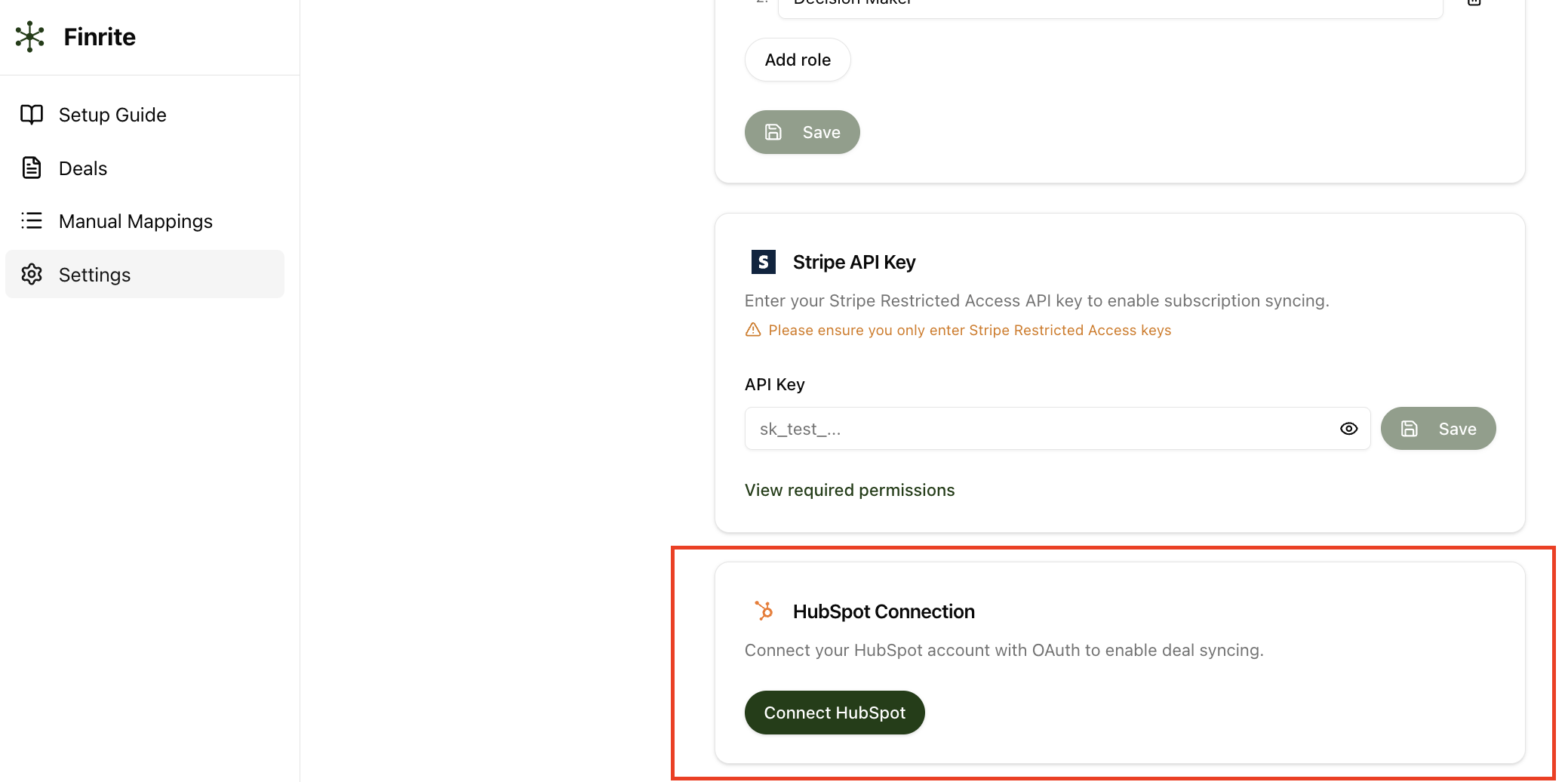
Step 3: Connect to your HubSpot account
- From the same settings page, click on Connect HubSpot to link your account.
Step 4: Set up your Finrite app card within HubSpot
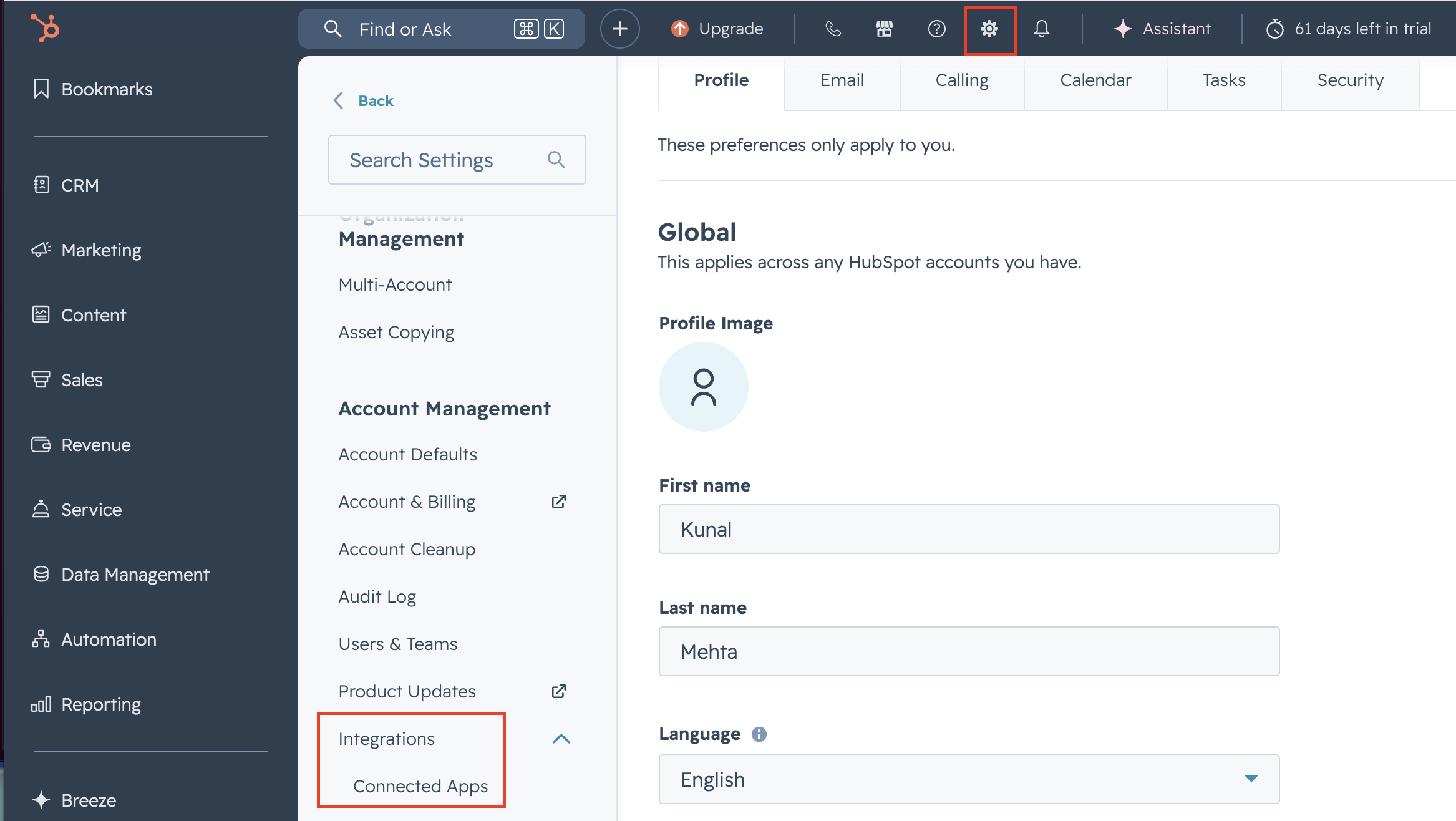
- Navigate to your settings in HubSpot, then Integrations and select Connected Apps.
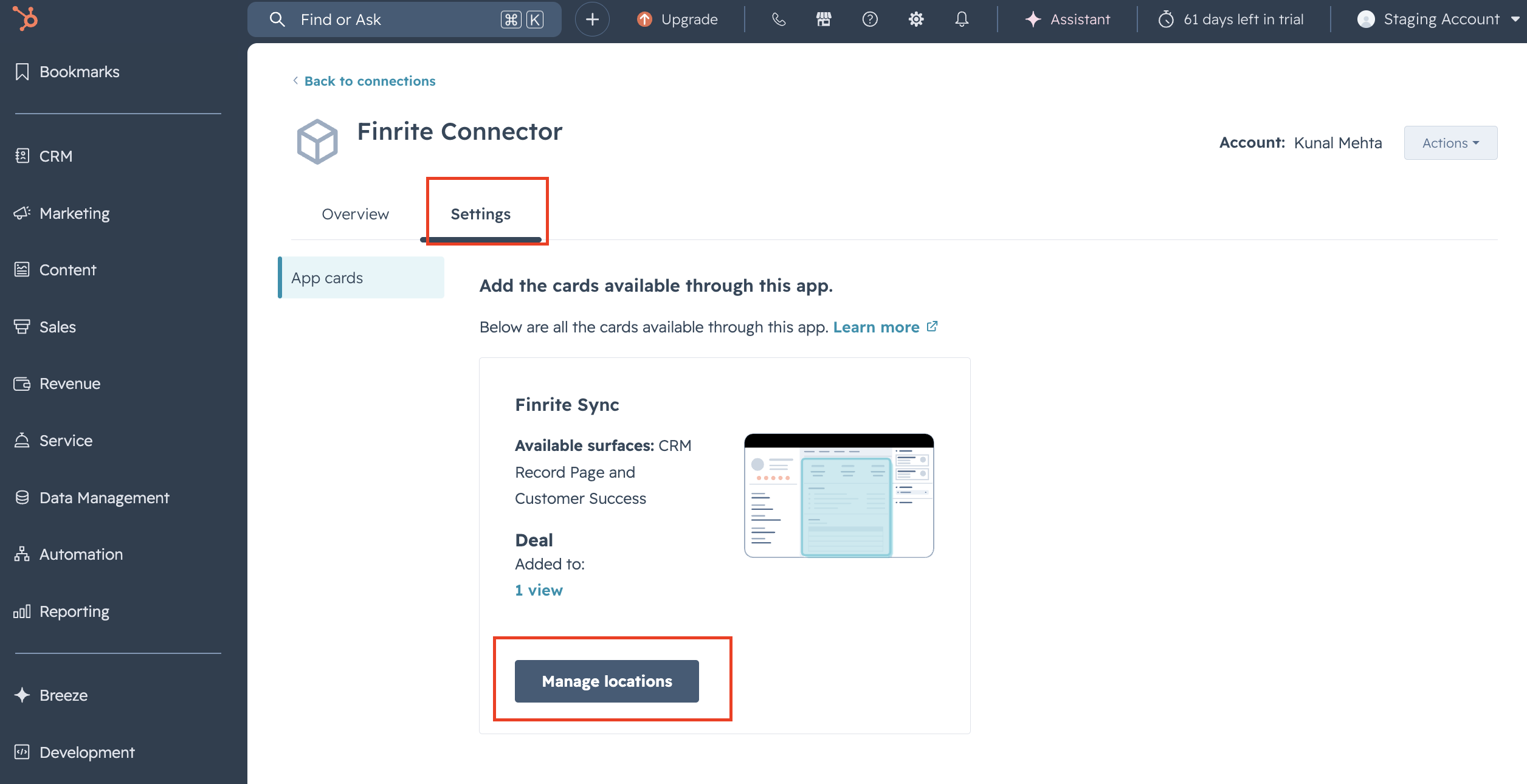
- Select the Finrite Connector app and click into settings for the app.
- Select Manage locations and check the boxes under Record page and Customer success for Finrite Sync, Finrite Deals (Contact) and Finrite Deals (Company).
Step 5: Sync your deals
- You can now sync HubSpot deals into Stripe Billing by clicking on the Sync Now button from the HubSpot deal page Finrite card.
- Visit settings to configure subscription settings, and Manual Mappings to set up product mappings so that line items are not duplicated during syncs.